This guide covers installing SeaLog and setting up your own crew identity — whether you're joining a vessel that already runs SeaLog, or trying it out on your own.
1. Install the app
SeaLog is currently in closed testing, distributed as a direct install link rather than through the App Store or Play Store. If you're part of the early access group, you'll receive an install link — open it on your Android device and follow the prompts to install.
2. Create your Crew Card
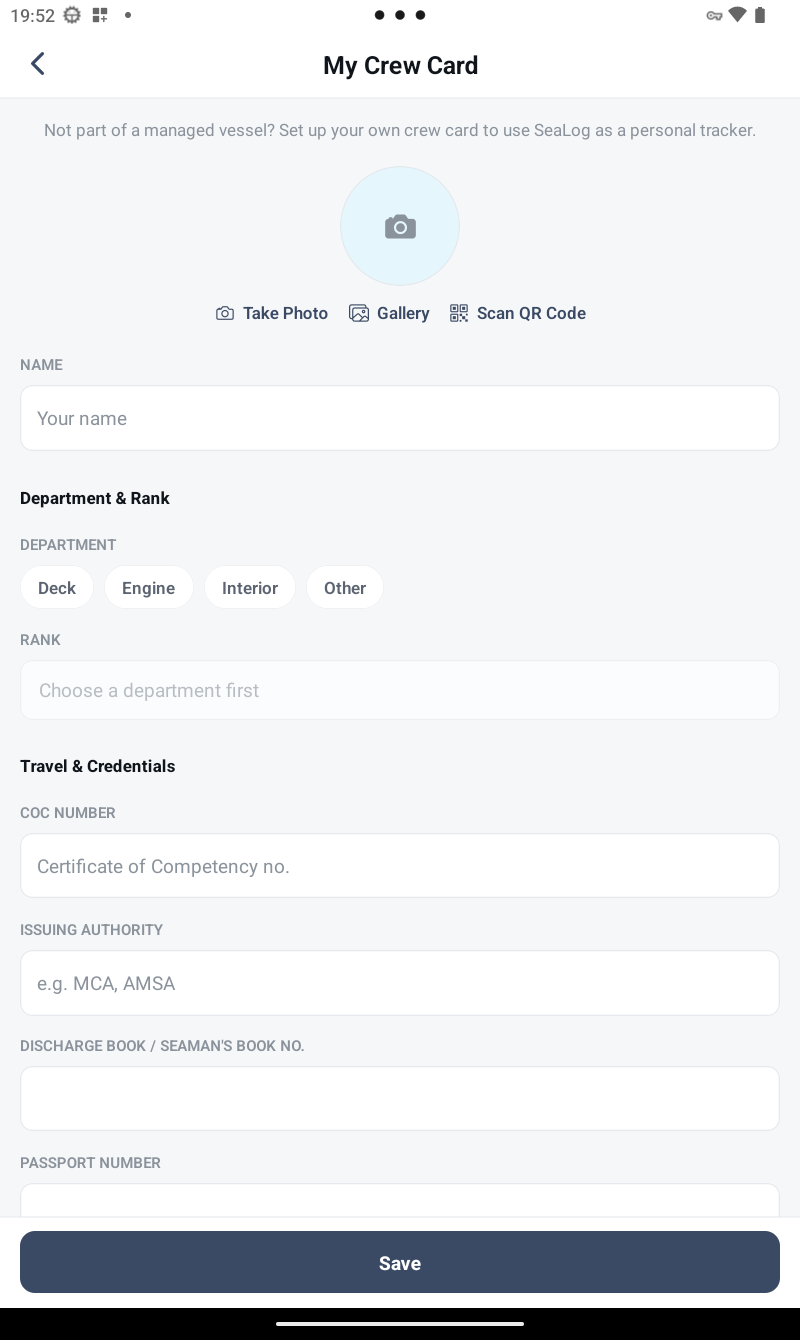
Your Crew Card is your identity inside SeaLog — your name, rank, department, photo, and a set of personal details (certificate of competency number, passport, next of kin) that make it genuinely useful in an emergency, not just a name badge. There are two ways to get one:
- Joining a managed vessel: your vessel's admin issues a QR code from their Master Terminal. Open SeaLog, go to
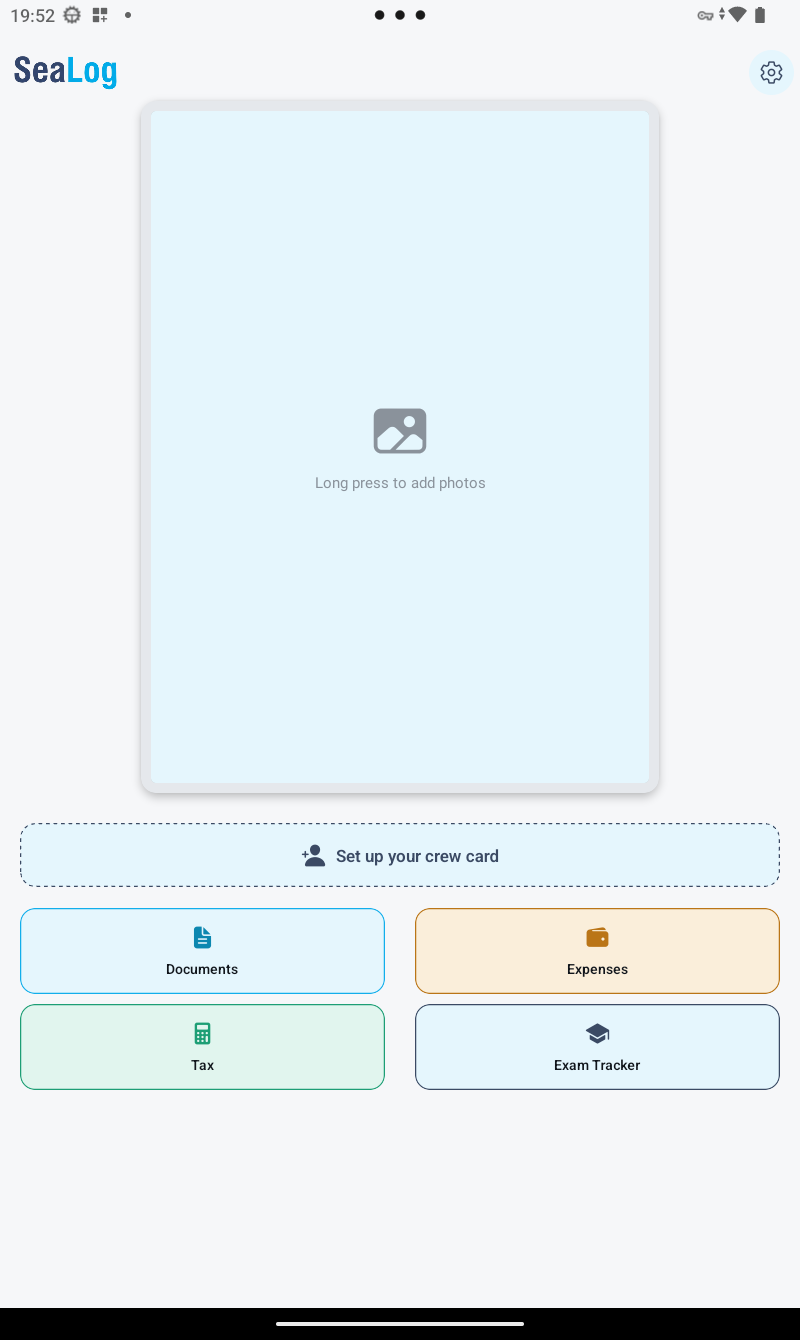
Settings → My Crew Card, and scan it. - Trying SeaLog on your own: from the Home screen's empty state, tap to create your own card — just a name and photo to start, no vessel required.
3. Find your way around
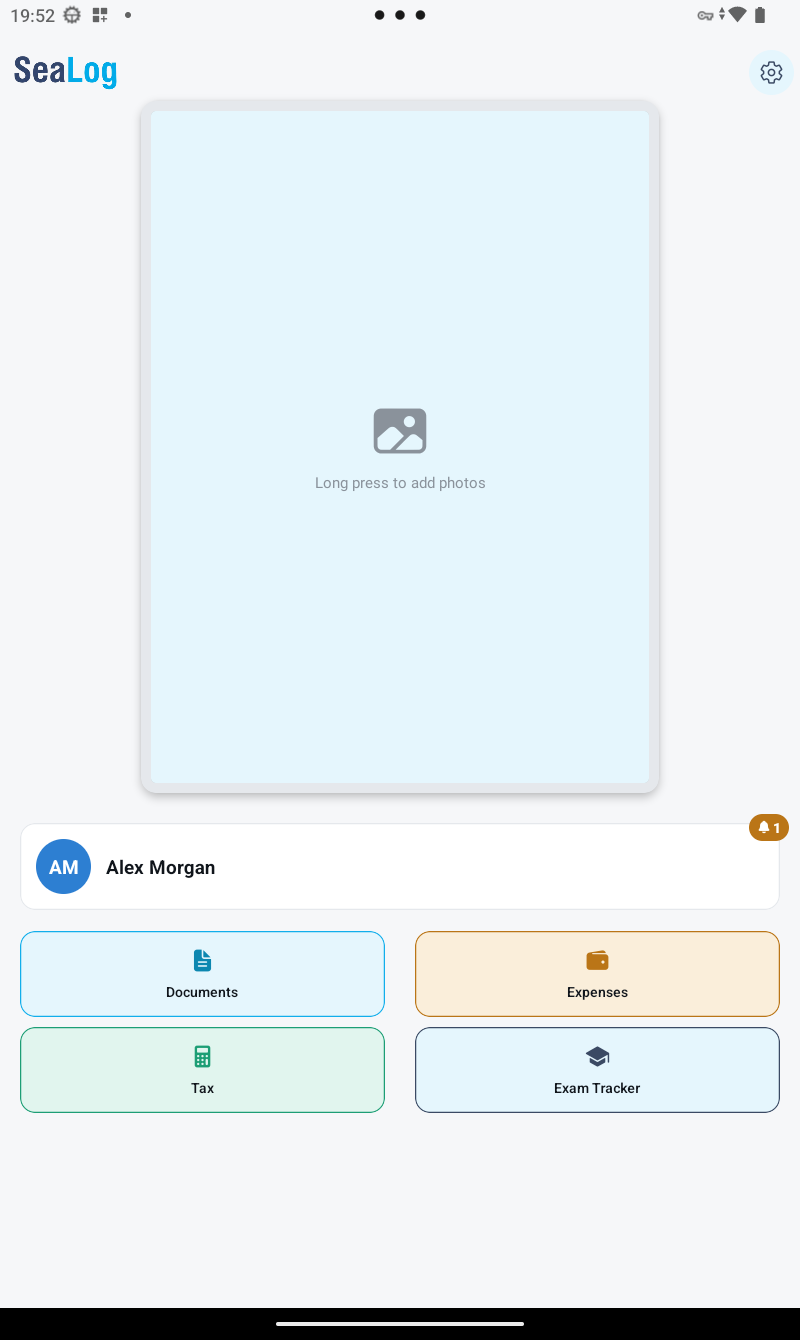
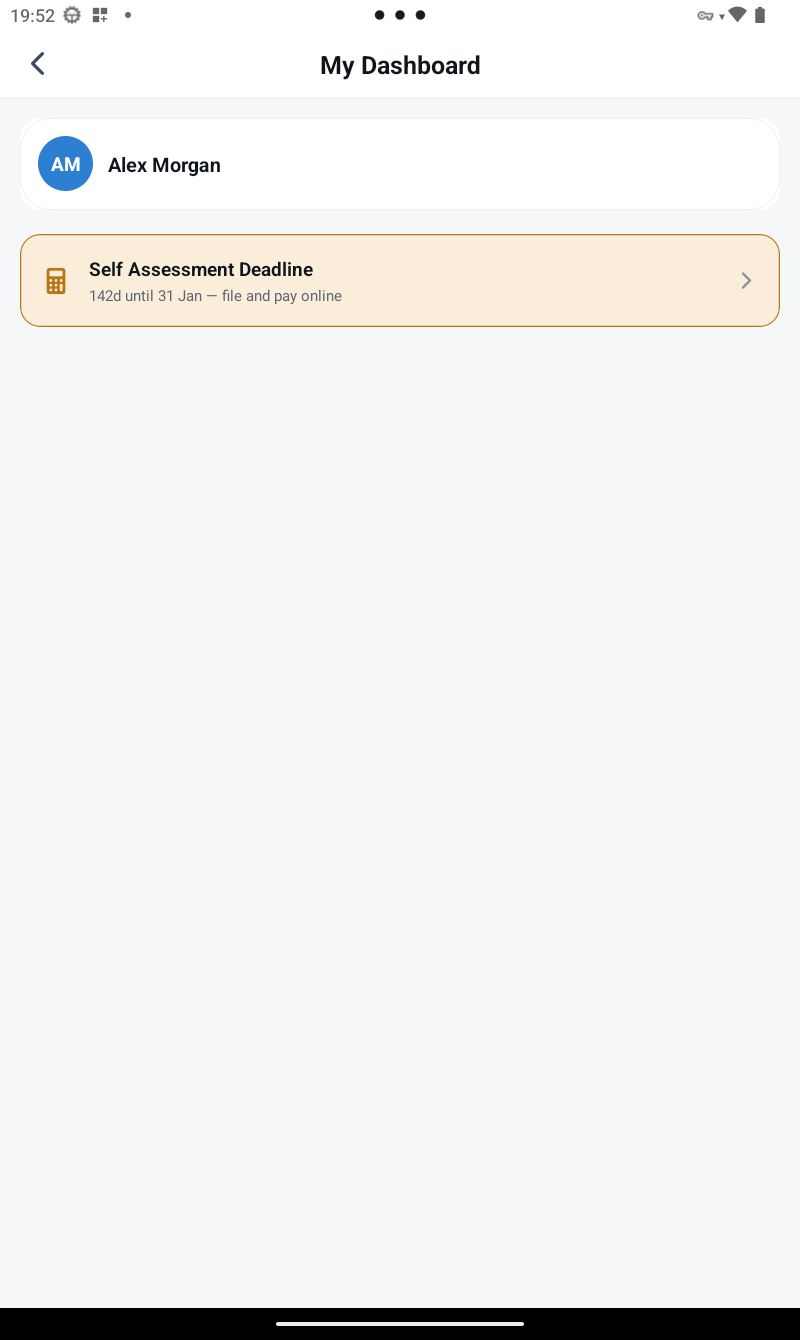
The Home screen is your crew dashboard — tap your crew card to open My Dashboard, a single feed of what needs your attention: certificates approaching expiry, an upcoming exam, your roster status, and any tax deadlines.
A solo card not tied to a managed vessel reaches:
- Documents — your certificates, with expiry tracking
- Expenses — submit a receipt for approval
- Tax — the SED day-counting tracker
- Exam Tracker — track an upcoming MCA oral exam
Once your device is scanned onto a managed vessel, two more appear: Work / Rest Hours and your live roster status — both need an admin's Master Terminal to sync against, so they stay hidden until then.
4. Everything works offline
You don't need a connection to use SeaLog day to day. If your device has been linked to a vessel's sync server (via Settings → Sync Server), your roster and certificate data will update automatically whenever you do have a connection — nothing is lost by being offline in between.