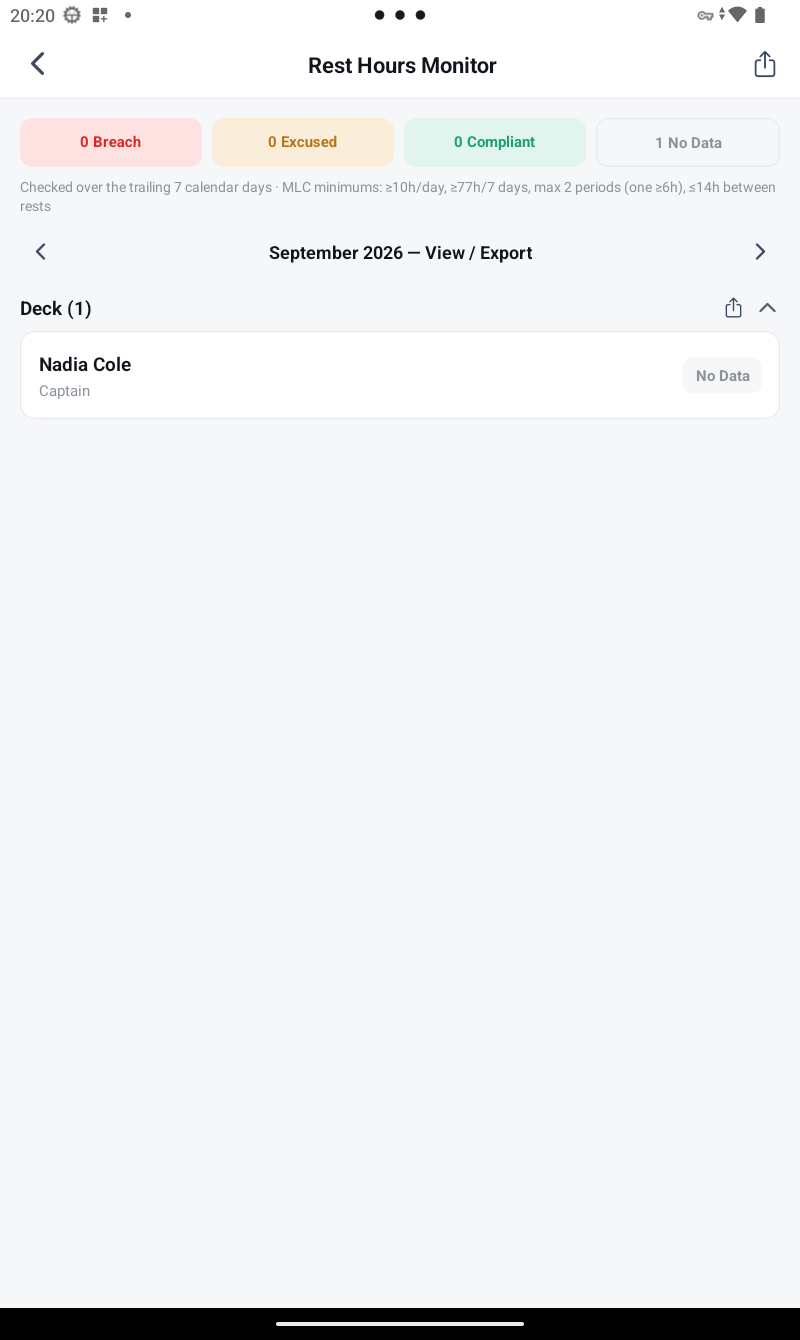
This guide is for the person running the ship's office — Master, Purser, or whoever holds the Master Terminal device. It covers unlocking Admin, bringing crew onto the system, and configuring compliance requirements.
1. Unlock the Master Terminal
From Settings → Admin, open Admin. On first run you'll set a 4-digit PIN. This gates the Admin area on your device only — it doesn't affect crew devices.
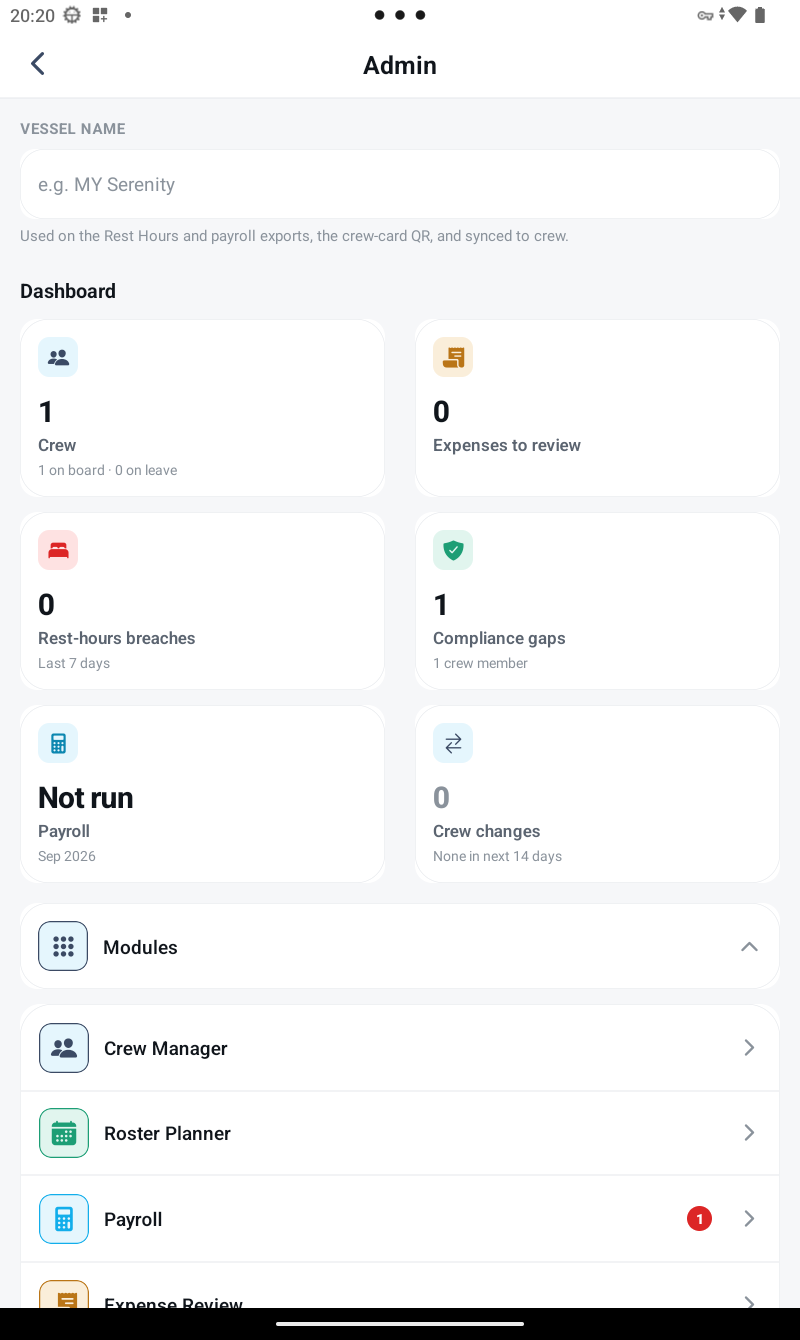
2. Connect to your sync server
Crew, roster, certificate and rest-hour data sync between the Master Terminal and crew devices through a sync server. Enter your vessel's server address and access key under Settings → Sync Server — do this on the Master Terminal first, then on every crew device.
3. Bring crew onto the vessel
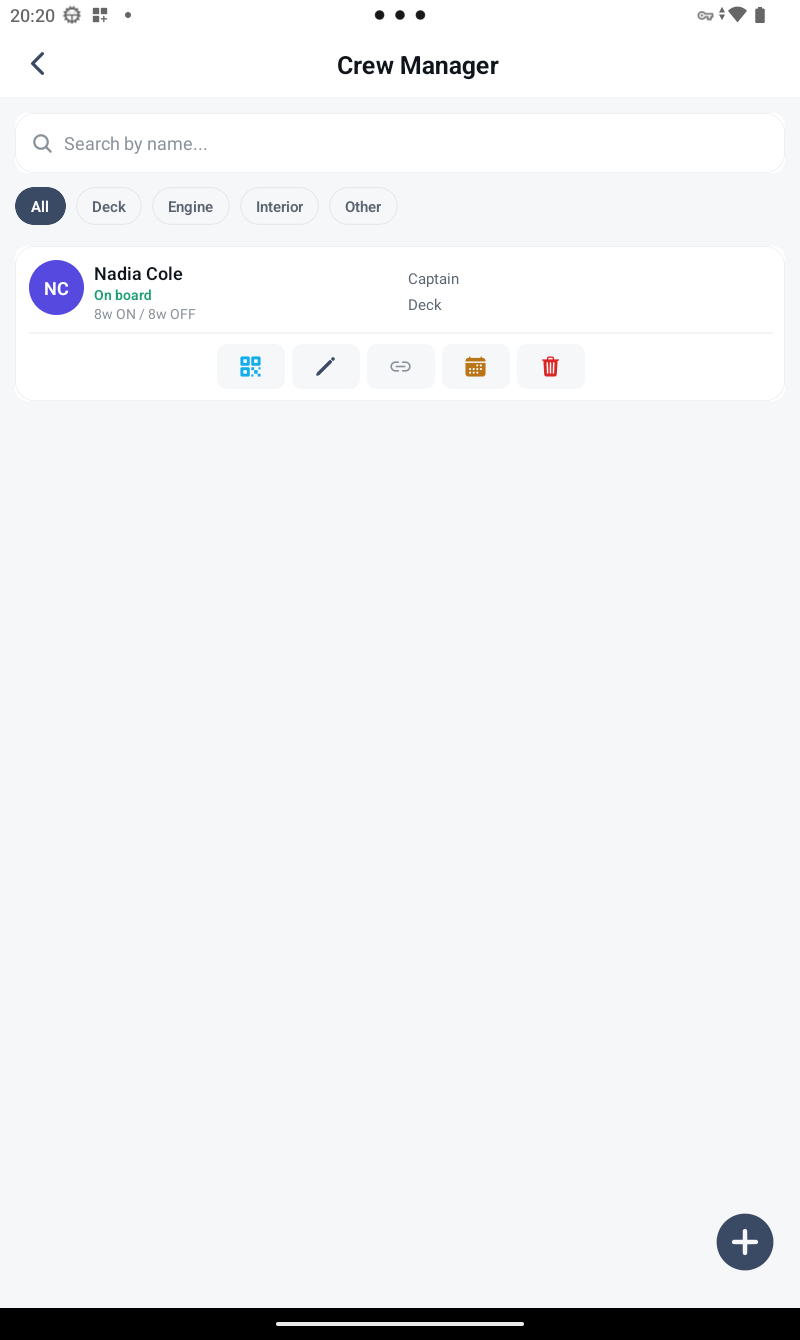
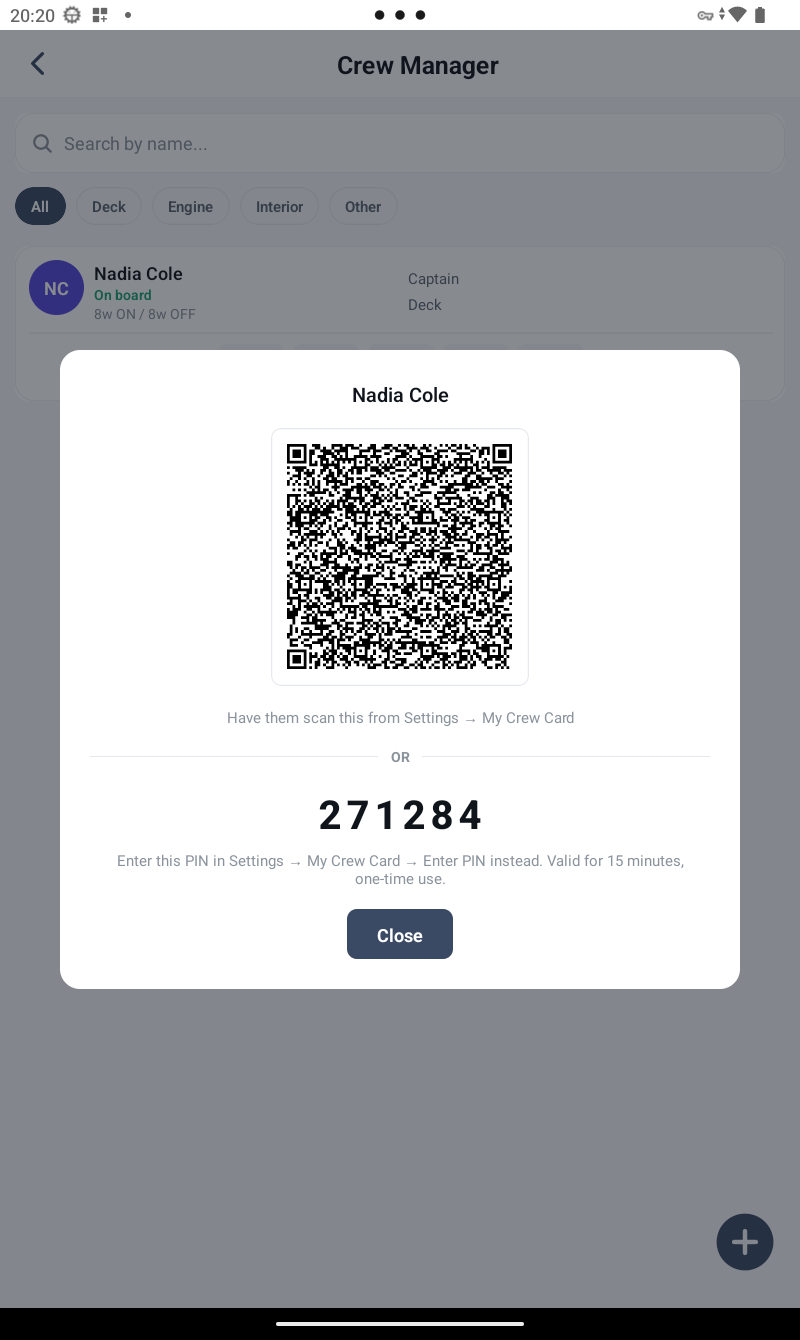
From Admin → Crew Manager, add each crew member with their name, rank and department. Each entry gets its own QR Crew Card — open it and have that crew member scan it from their own device, under Settings → My Crew Card. No camera to hand? Generate a one-time 6-digit PIN instead and read it out.
4. Set up the Compliance Matrix
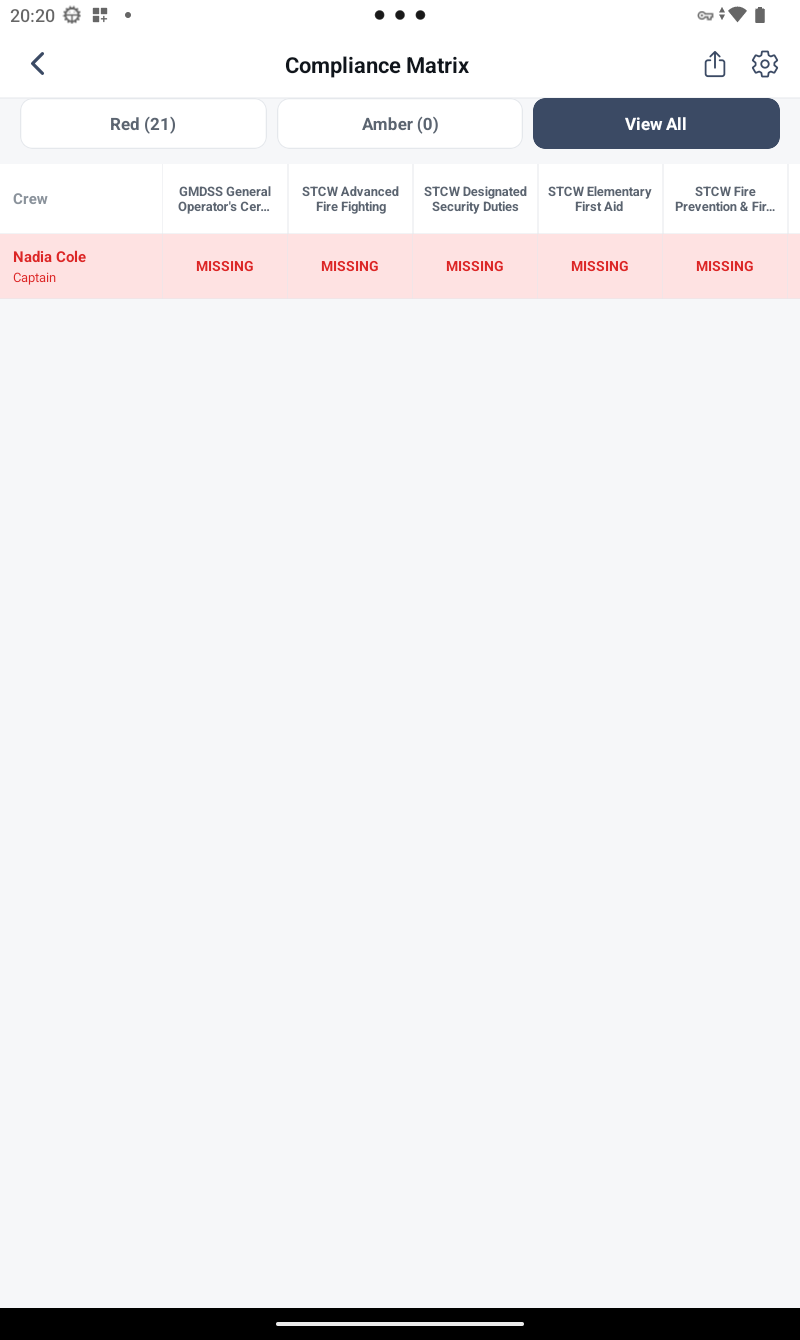
From Admin → Compliance Matrix, define what every department must have on file — for example, an ENG1 Medical and STCW Basic Safety Training for all Engine crew. As crew upload their certificates, the matrix automatically shows what's on file, expiring, or missing, across the whole crew.
5. Plan the roster
From Admin → Roster Planner, set sign-on and sign-off dates for each crew member. Crew see their own status (onboard / days until back) on their Home screen automatically.
6. Monitor rest hours
From Admin → Rest Hours Monitor, see vessel-wide MLC/STCW compliance at a glance, review any reported emergency overrides, and approve compensatory rest. Crew log their own hours; you don't need to do it for them.